A Modern Interface
for FLDIGI

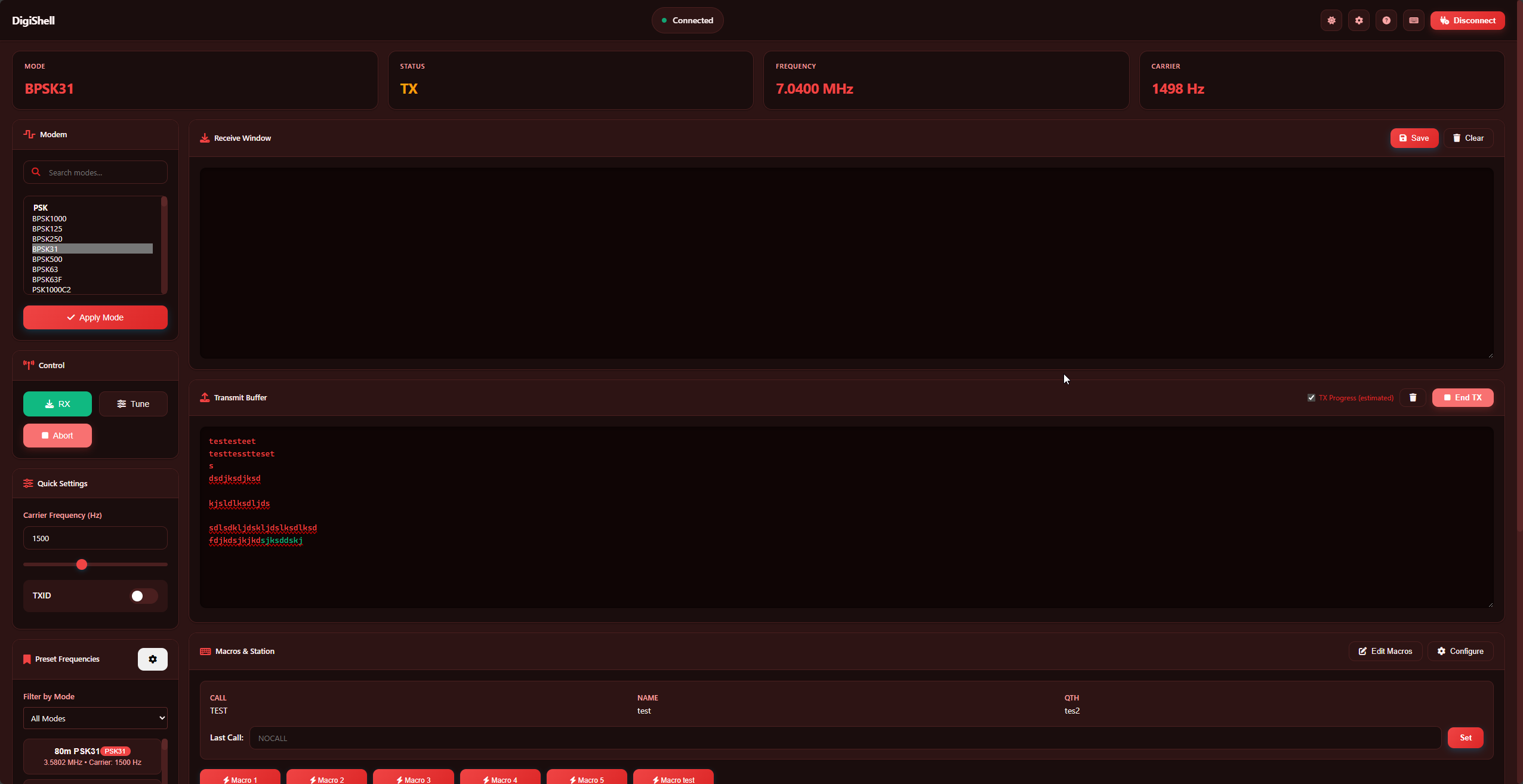
DigiShell is a modern Web and Terminal interface for FLDIGI. It adds a cleaner, more accessible way to control your digital modes without replacing FLDIGI itself.

Learn More

Two Ways to Connect

Choose the interface that fits your workflow—both offer the same powerful features.

Web UI Interface
WEB INTERFACE

Control from Anywhere

Access DigiShell from any browser on your LAN or VPN. Operate from a tablet while your rig is in another room. Fully responsive and mobile-optimized for field operations.

Real-Time WebSocket Updates

Live RX/TX streaming with zero refresh delay

Custom Keyboard Shortcuts

Trigger macros and controls without touching your mouse

Local & Offline First

No internet required—runs entirely on your LAN

Security Note: No authentication. Do not expose to public internet.
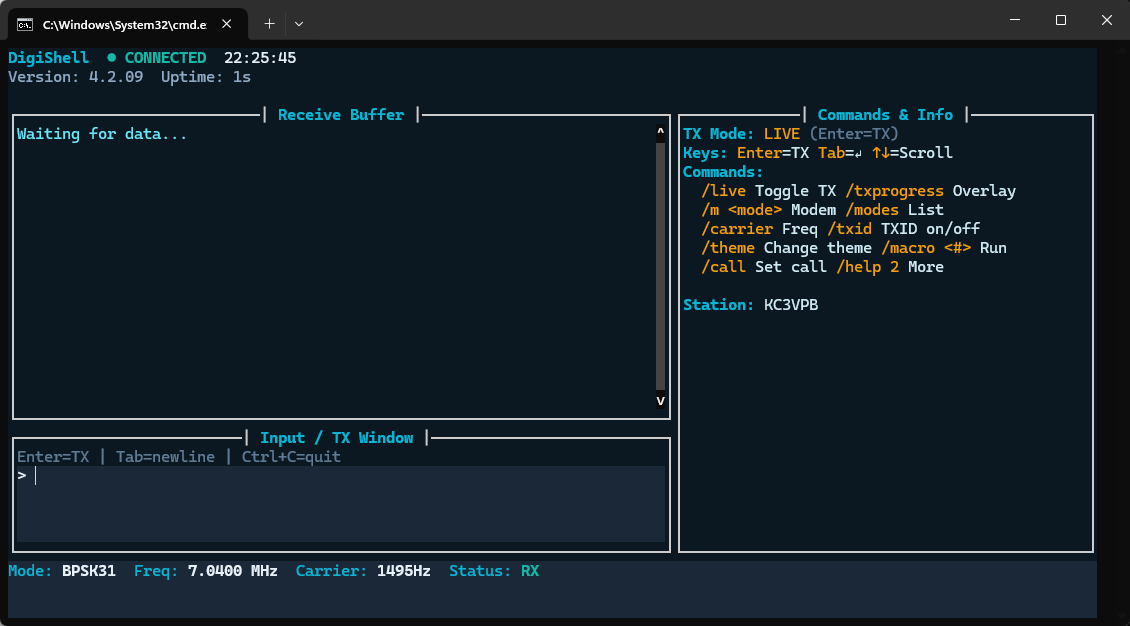
TERMINAL INTERFACE

SSH-Ready TUI

Built with Prompt Toolkit for a snappy, interactive terminal experience. Perfect for SSH sessions, headless servers, or when you just prefer the command line.

Interactive TUI with Prompt Toolkit

Rich terminal UI with autocompletion and history

Chat-Style RX/TX Display

Conversation view for cleaner message tracking

Slash Commands for Quick Actions

Type /cq, /macro, /freq and more for instant control

Terminal UI Interface
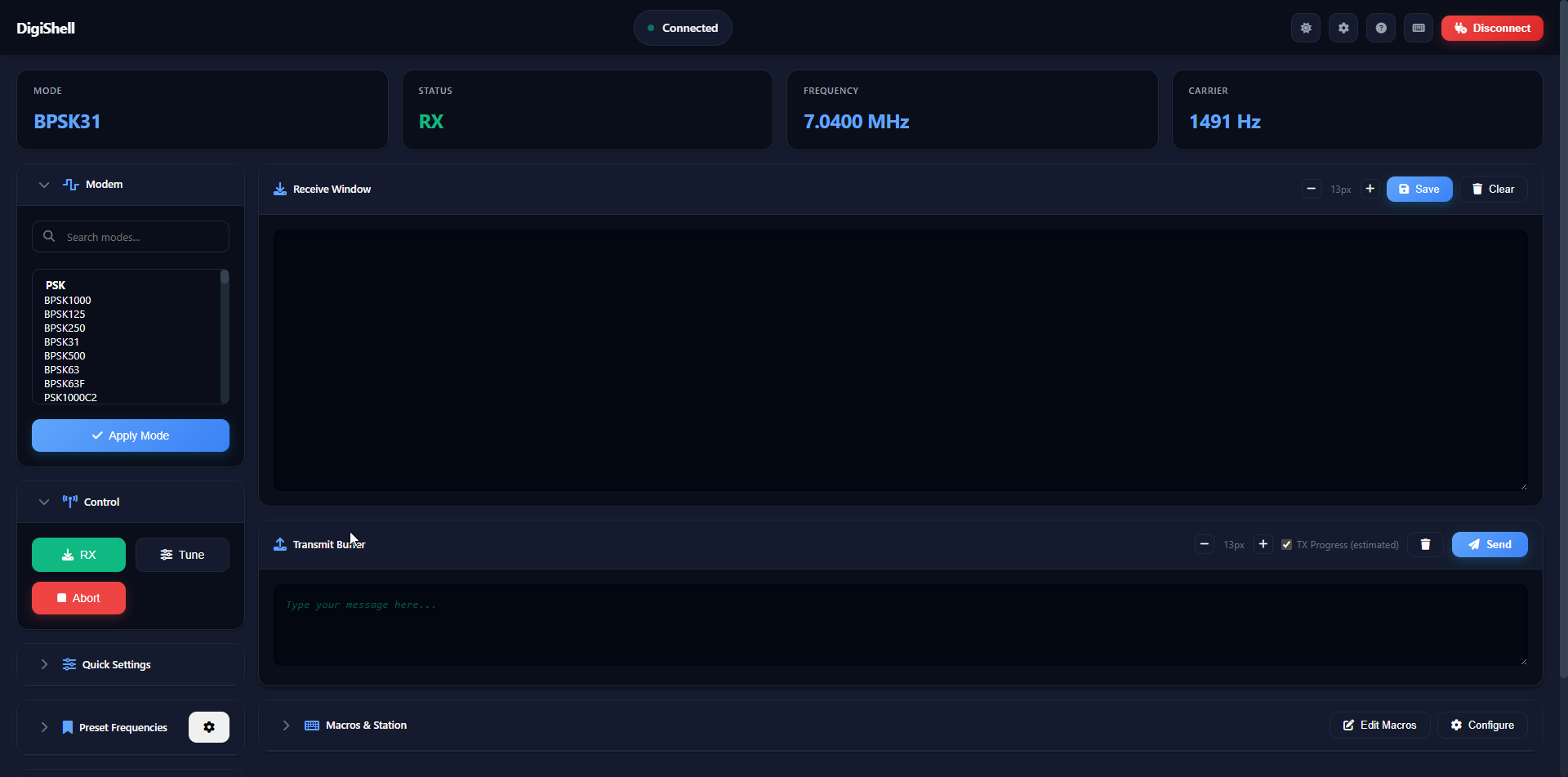
THEMES

Your Style, Your Way

Switch between light and dark themes with a single click. Custom themes let you configure colors, fonts, and styling to match your preferences and operating environment.

Built-In Light & Dark Themes

Eye-friendly designs for day and night operation

Customizable Color Schemes (Coming Soon)

Create your own themes with custom accent colors

Responsive & Mobile-Optimized

Looks great on desktop, tablet, and mobile

MACROS

Smart Macros, Fast QSOs

Pre-built macros for common exchanges (CQ, greetings, signal reports, 73s) with Auto Fill support for callsigns, names, QTH, and timestamps. Create custom macros tailored to your operating style.

Auto Fill Variables

{{CALLSIGN}}, {{NAME}}, {{QTH}}, {{DATE}}, {{TIME}} and more

Pre-Made Templates

CQ calls, greetings, signal reports, sign-offs ready to go

Custom Macros

Build your own macros with full variable support

CQ CQ CQ de {{CALLSIGN}} {{CALLSIGN}} K

CQ

CQ Call

CQ CQ CQ de {{CALL}}...

HI

Greeting

GM {{NAME}} ur 599...

73

Sign Off

73 {{NAME}} de {{CALL}} SK

QTH

Location

QTH {{QTH}} {{QTH}}...

Technical Stack

A Python backend built with FastAPI, WebSocket communication, and real time updates.

FastAPI Backend

Python 3.10+ with async/await for high performance, nonblocking I/O operations.

  • → RESTful API design
  • → OpenAPI docs at /docs
  • → Uvicorn ASGI server

XML-RPC Client

Wraps FLDIGI's 53+ API methods for complete control over modem, TX/RX, rig, and macros.

  • → PyFldigi library
  • → Port 7362 communication
  • → Auto detection on startup

WebSocket Manager

Real time broadcasts for RX/TX updates, status changes, and live modem data.

  • → Zero latency updates
  • → Bidirectional communication
  • → Automatic reconnection

Dependencies

Minimal, battle-tested libraries for maximum reliability.

  • → python-multipart, websockets
  • → python-dotenv, Pydantic
  • → Rich, prompt_toolkit (TUI)

How it Works

DigiShell wraps FLDIGI's XML-RPC interface using pyFldigi to provide a cleaner, more accessible control interface. FLDIGI handles the core modem and signal processing work. DigiShell just makes it easier to use.

Simple & Straightforward

Built for simplicity and portable operations. It focuses on essential controls and leaves advanced features (waterfall, detailed config, macro editing) to FLDIGI's native interface.

Setup & Installation

Get DigiShell running in minutes

Requires FLDIGI (with XML-RPC enabled on port 7362) and Python 3.10+

Automatic venv Setup

Virtual environment created and activated automatically

Dependency Management

All dependencies installed via requirements.txt

Auto FLDIGI Detection

Verifies XML-RPC connection on startup (port 7362)

1

Download DigiShell

Clone or download from github.com/Caleb-J773/DigiShell

2

Start FLDIGI

Ensure XML RPC is enabled in settings (usually is by default).

3

Run the Batch File

Double click DigiShell.bat inside the folder.

4

Choose Your Interface

The batch file will prompt you to launch either the Web interface or Terminal interface.

$

git clone https://github.com/Caleb-J773/DigiShell.git

$

cd DigiShell

$

python -m venv venv && source venv/bin/activate

$

pip install -r requirements.txt

# Run Web Interface

$

python -m backend.main

# OR Run Terminal Interface

$

python run_tui.py